Outlook 에서 읽지 않은 메일을 즐겨찾기 폴더에 추가하는 방법은 무엇인가요?
때때로 읽지 않은 이메일 메시지가 금액에 섞여 있을 수 있습니다. Outlook 이 읽지 않은 이메일 메시지 수를 알려주더라도(예:받은 편지함(5))), 한눈에 찾기 어렵습니다。 실제로 모든 읽지 않은 이메일 메시지를 즐겨찾기 폴더에 모아 두면 작업이 훨씬 편리하고 빠르게 진행됩니다。
다음 안내는 모든 읽지 않은 이메일 메시지를 '읽지 않은 메일‘ 폴더에 모으고, 해당 폴더를 즐겨찾기에 표시하는 데 도움을 줍니다。
단계 1:메일을(를) 클릭하여 메일 보기로 전환합니다。
단계 2: 새 검색 폴더를 만듭니다:
- Outlook 2010 / 2013 에서새 검색 폴더단추를새로 만들기그룹의폴더탭에서 클릭합니다。
- Outlook 2007 에서파일>새로 만들기>검색 폴더.

사실 새 검색 폴더를 만드는 또 다른 방법이 있습니다。 탐색에서검색 폴더를 마우스 오른쪽 버튼으로 클릭한 후, 상황에 맞는 메뉴에서새 검색 폴더를 클릭합니다。

이 방법은 Microsoft Outlook 2007, 2010, 2013 의 모든 버전에서 사용할 수 있습니다。
단계 2: '새 검색 폴더‘ 대화 상자에서읽지 않은 메일항목을 선택하고 강조 표시한 후,확인을(를) 클릭합니다。
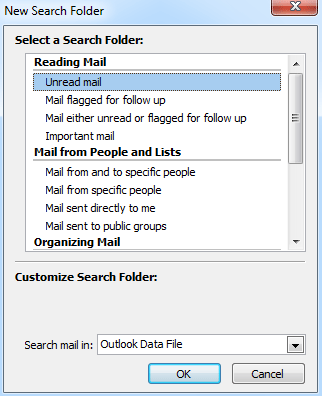
이제읽지 않은 메일폴더가 생성되어 탐색에 표시됩니다。 모든 읽지 않은 이메일 메시지가 자동으로 이 폴더에 수집됩니다。 읽지 않은 이메일 메시지를 한 번 열면 자동으로 '읽지 않은 메일‘ 폴더에서 제거됩니다。
단계 3:읽지 않은 메일폴더를 마우스 오른쪽 버튼으로 클릭하고, 상황에 맞는 메뉴에서즐겨찾기에 표시항목을 클릭합니다。
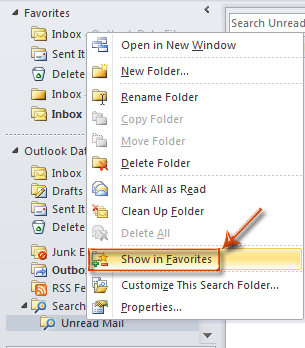
이제 '읽지 않은 메일‘ 폴더가 복사되어 탐색 상단의 즐겨찾기에 추가됩니다。

팁: 모든 계정의 읽지 않은 이메일을 하나의 폴더에 추가하려면 아래 단계를 따르세요:
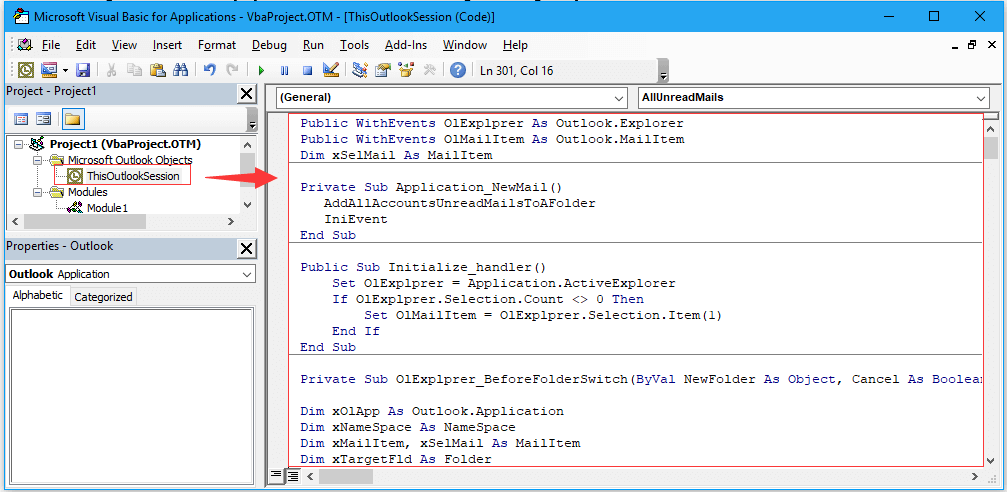
1. Alt + F11키를 눌러Microsoft Visual Basic for Applications창을 활성화합니다。 그런 다음프로젝트창에서Microsoft Outlook 개체>ThisOutlookSession을(를) 클릭하고, 아래 코드를 오른쪽 섹션에 붙여넣습니다。
Public WithEvents OlExplprer As Outlook.Explorer
Public WithEvents OlMailItem As Outlook.MailItem
Dim xSelMail As MailItem

Private Sub Application_NewMail()
   AddAllAccountsUnreadMailsToAFolder
   IniEvent
End Sub

Public Sub Initialize_handler()
    Set OlExplprer = Application.ActiveExplorer
    If OlExplprer.Selection.Count <> 0 Then
        Set OlMailItem = OlExplprer.Selection.Item(1)
    End If
End Sub

Private Sub OlExplprer_BeforeFolderSwitch(ByVal NewFolder As Object, Cancel As Boolean)

Dim xOlApp As Outlook.Application
Dim xNameSpace As NameSpace
Dim xMailItem, xSelMail As MailItem
Dim xTargetFld As Folder

On Error Resume Next

Set xOlApp = Outlook.Application
Set xNameSpace = xOlApp.GetNamespace("MAPI")

If NewFolder.Name = "Unread Mail" Then

    For Each xMailItem In NewFolder.Items

        If xMailItem.UnRead = False Then

            xMailItem.Delete

        End If

    Next

Else

    For Each xTargetFld In xNameSpace.Folders.Item(1).Folders

        If xTargetFld.Name = "Unread Mail" Then

            For Each xMailItem In xTargetFld.Items

                If (OlExplprer.Selection.Count <> 0) Then

                    Set xSelMail = OlExplprer.Selection.Item(1)

                    If xSelMail.UnRead Then

                        xSelMail.UnRead = False

                    End If

                End If
            Next

        End If
    Next

End If

Cancel = False

End Sub

Private Sub OlExplprer_FolderSwitch()

Dim xOlApp As Outlook.Application
Dim xNameSpace As NameSpace
Dim xMailItem As MailItem
Dim xAccountFld, xTargetFld, xSubFolder As MAPIFolder
Dim xObjItem As Object

On Error Resume Next
Set xOlApp = Outlook.Application
Set xNameSpace = xOlApp.GetNamespace("MAPI")

Refresh

If (OlExplprer.CurrentFolder.Name <> "Unread Mail") Then

    For Each xTargetFld In xNameSpace.Folders.Item(1).Folders

        If xTargetFld.Name = "Unread Mail" Then

            For Each xMailItem In xTargetFld.Items

                If xMailItem.UnRead = False Then

                    For Each xAccountFld In xNameSpace.Folders

                        For Each xSubFolder In xAccountFld.Folders

                            If (xSubFolder.Name <> "Deleted Items") And (xSubFolder.Name <> "Drafts") And (xSubFolder.Name <> "Outbox") And (xSubFolder.Name <> "Junk E-mail") Then

                                For Each xObjItem In xSubFolder.Items

                                    If xObjItem.Class = olMail Then

                                        If (xObjItem.Subject = xMailItem.Subject) And (xObjItem.SenderName = xMailItem.SenderName) And _
                                           (xObjItem.Body = xMailItem.Body) And (xObjItem.Attachments.Count = xMailItem.Attachments.Count) And _
                                           (xObjItem.SentOn = xMailItem.SentOn) Then

                                            xObjItem.UnRead = False

                                        End If

                                    End If

                                Next

                            End If

                        Next

                    Next

                End If

            Next

        End If

    Next

End If

End Sub

Private Sub OlExplprer_SelectionChange()

Dim xOlApp As Outlook.Application
Dim xNameSpace As NameSpace

On Error Resume Next
Set xOlApp = Outlook.Application
Set xNameSpace = xOlApp.GetNamespace("MAPI")

If (OlExplprer.CurrentFolder.Name = "Unread Mail") And (OlExplprer.Selection.Count <> 0) Then

    SelUnreadMailFld OlExplprer.CurrentFolder.Items, xNameSpace.Folders

Else

    If (OlExplprer.CurrentFolder.Name <> "Deleted Items") And (OlExplprer.CurrentFolder.Name <> "Drafts") And _
       (OlExplprer.CurrentFolder.Name <> "Outbox") And (OlExplprer.CurrentFolder.Name <> "Junk E-mail") Then

       SelOtherFld xNameSpace.Folders.Item(1).Folders

    End If

End If

End Sub

Sub SelUnreadMailFld(EMails As Outlook.Items, Flds As Folders)

Dim xMailItem As MailItem
Dim xAccountFld, xSubFolder As Folder
Dim xObjItem As Object
On Error Resume Next
For Each xMailItem In EMails 'OlExplprer.CurrentFolder.Items

    If xMailItem.UnRead = False Then

        For Each xAccountFld In Flds

            For Each xSubFolder In xAccountFld.Folders

                If (xSubFolder.Name <> "Deleted Items") And (xSubFolder.Name <> "Drafts") And (xSubFolder.Name <> "Outbox") And (xSubFolder.Name <> "Junk E-mail") Then

                    For Each xObjItem In xSubFolder.Items

                        If xObjItem.Class = olMail Then

                            If (xObjItem.Subject = xMailItem.Subject) And (xObjItem.SenderName = xMailItem.SenderName) And _
                               (xObjItem.Body = xMailItem.Body) And (xObjItem.Attachments.Count = xMailItem.Attachments.Count) And _
                               (xObjItem.SentOn = xMailItem.SentOn) Then

                                If xObjItem.UnRead Then

                                    xObjItem.UnRead = False

                                End If

                            End If

                        End If

                    Next

                End If

            Next

        Next

    End If

Next

End Sub

Sub SelOtherFld(Flds As Folders)
Dim xSelItem, xMailItem As MailItem
Dim xTargetFld As Folder

On Error Resume Next
If OlExplprer.Selection.Count <> 0 Then

    Set xSelItem = OlExplprer.Selection.Item(1)

    If xSelItem.UnRead = False Then

        For Each xTargetFld In Flds

            If xTargetFld.Name = "Unread Mail" Then

                For Each xMailItem In xTargetFld.Items

                    If (xSelItem.Subject = xMailItem.Subject) And (xSelItem.SenderName = xMailItem.SenderName) And _
                       (xSelItem.Body = xMailItem.Body) And (xSelItem.Attachments.Count = xMailItem.Attachments.Count) And _
                       (xSelItem.SentOn = xMailItem.SentOn) Then

                        xMailItem.UnRead = False

                    End If

                Next

            End If
        Next

    End If

End If

End Sub


Sub Refresh()

Dim xOlApp As Outlook.Application
Dim xNameSpace As NameSpace
Dim xTargetFld As MAPIFolder
Dim xAllUnreadMails As Integer

On Error Resume Next
Set xOlApp = Outlook.Application
Set xNameSpace = xOlApp.GetNamespace("MAPI")

xAllUnreadMails = AllUnreadMails()

For Each xTargetFld In xNameSpace.Folders.Item(1).Folders

    If xTargetFld.Name = "Unread Mail" Then

        If xAllUnreadMails <> xTargetFld.Items.Count Then

            AddAllAccountsUnreadMailsToAFolder

            Exit For

        End If

    End If

Next

End Sub

Function AllUnreadMails()

Dim xOlApp As Outlook.Application
Dim xNameSpace As NameSpace
Dim xAllUnreadMails As Integer

On Error Resume Next
Set xOlApp = Outlook.Application
Set xNameSpace = xOlApp.GetNamespace("MAPI")

xAllUnreadMails = 0
For Each xFolders In xNameSpace.Folders

   For Each xSubFolder In xFolders.Folders

     If xSubFolder.Name <> "Unread Mail" Then

     If (xSubFolder.Name <> "Deleted Items") And (xSubFolder.Name <> "Drafts") And (xSubFolder.Name <> "Outbox") And (xSubFolder.Name <> "Junk E-mail") Then

         For Each xObjItem In xSubFolder.Items

            If xObjItem.Class = olMail Then

               If xObjItem.UnRead Then

                 xAllUnreadMails = xAllUnreadMails + 1

               End If

            End If
         Next

        End If

     End If

   Next

Next

AllUnreadMails = xAllUnreadMails
End Function
2. 그런 다음 새 모듈을 삽입하고, 아래 코드를 모듈 스크립트에 붙여넣습니다。
Public Sub AddAllAccountsUnreadMailsToAFolder()
Dim xOlApp As Outlook.Application
Dim xNameSpace As NameSpace
Dim xFolders, xSubFolder As MAPIFolder
Dim xObjItem As Object
Dim xDelFld As Folder
Dim xUnreadMailFld, xOldUnreadMailFld As Folder
Dim xCopiedItem, xMailItem As MailItem

On Error Resume Next
Set xOlApp = Outlook.Application
Set xNameSpace = xOlApp.GetNamespace("MAPI")

For Each xOldUnreadMailFld In xNameSpace.Folders.Item(1).Folders
    If xOldUnreadMailFld.Name = "Unread Mail" Then
        xOldUnreadMailFld.Delete
        Exit For
    End If
Next

For Each xDelFld In xNameSpace.Folders.Item(1).Folders
    If xDelFld.Name = "Deleted Items" Then
        For Each xMailItem In xDelFld.Items
            xMailItem.Delete
        Next
        For Each xSubFolder In xDelFld.Folders
        'For i = xDelFld.Folders.Count To 1 Step -1
            xSubFolder.Delete
        Next
    End If
Next

Set xUnreadMailFld = xNameSpace.Folders.Item(1).Folders.Add("Unread Mail")
If xUnreadMailFld = nil Then
    Exit Sub
End If


For Each xFolders In xNameSpace.Folders

   For Each xSubFolder In xFolders.Folders

     If xSubFolder.Name <> xUnreadMailFld.Name Then

     If (xSubFolder.Name <> "Deleted Items") And (xSubFolder.Name <> "Drafts") And (xSubFolder.Name <> "Outbox") And (xSubFolder.Name <> "Junk E-mail") Then

         For Each xObjItem In xSubFolder.Items

            If xObjItem.Class = olMail Then

               If xObjItem.UnRead Then

                 Set xCopiedItem = xObjItem.Copy

                 xCopiedItem.Move xUnreadMailFld

               End If

            End If
         Next

        End If

     End If

   Next

Next

IniEvent

End Sub

Public Sub IniEvent()
Dim xFld As ThisOutlookSession
Set xFld = ThisOutlookSession
xFld.Initialize_handler
End Sub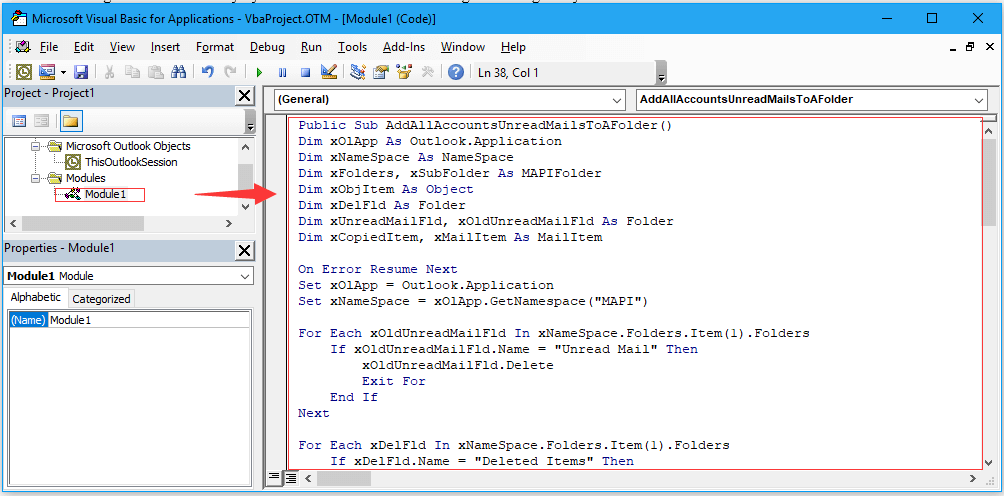
3. AddAllAccountsUnreadMailsToAFolder라는 이름의 코드를 실행합니다。 그러면 모든 읽지 않은 이메일이읽지 않은 메일이라는 이름의 폴더에 저장됩니다。
Outlook 에서 하나 이상의 연락처 폴더에서 모든 중복 연락처 제거 |
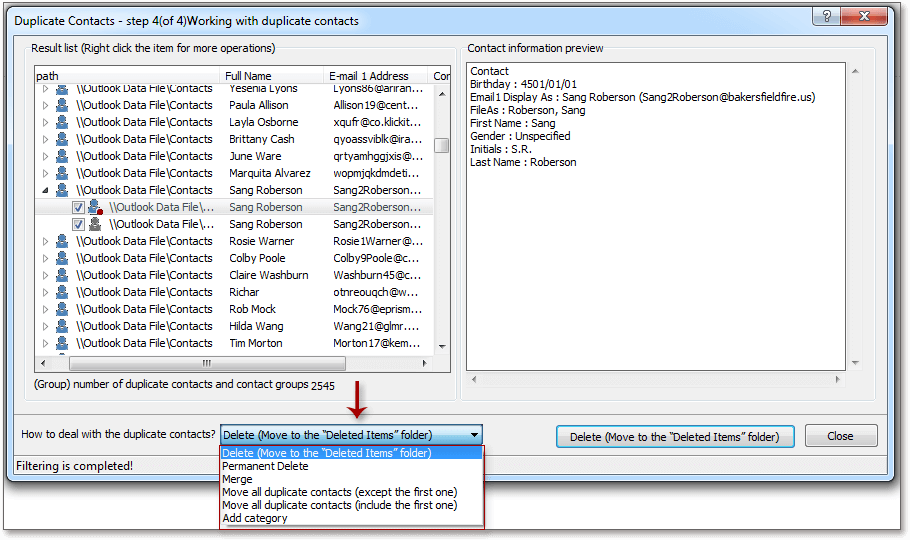
| 때로는 동일한 연락처를 반복해서 추가할 수 있습니다。 하나 또는 여러 연락처 폴더에서 중복 연락처을(를) 어떻게 제거할 수 있을까요?Kutools for Outlook's Duplicate Contacts기능을 사용하면 모든 중복 연락처을(를) 빠르게 찾아 지정한 조건(예: 하나 이상의 연락처 폴더에서 동일한 전체 이름 또는 동일한 이메일 주소에 있는 중복 연락처 찾기)에 따라 제거하거나 중복 연락처 데이터 병합할 수 있습니다。30 일간 모든 기능을 사용할 수 있는 30 무료 체험판을 지금 시작하세요! |
 |
| Kutools for Outlook: 수십 가지의 유용한 Outlook 애드인과 함께, 향후 30 일 동안 제한 없이 무료로 사용해 보세요。 |
최고의 Office 생산성 도구
Kutools for Outlook 의 완전히 새로운 버전을 100+가지 놀라운 기능과 함께 경험해 보세요!지금 다운로드하세요!
🤖KUTOOLS AI:고급 AI 기술을 활용하여 이메일 회신, 요약, 최적화, 확장, 번역, 작성 등 이메일 관련 작업을 손쉽게 처리합니다。
📧이메일 자동화:자동 회신(POP 및 IMAP 지원)/이메일 예약 발송/이메일 발송 시 규칙에 따라 자동 참조/숨은 참조/자동 전달(고급 규칙)/자동 인사말 추가/수신자 여러 명이 포함된 이메일을 자동으로 개별 메시지로 분할...
📨이메일 관리:이메일 회수/제목 등을 기준으로 피싱 이메일 차단/중복된 이메일 삭제/고급 검색/폴더 정리...
📁첨부파일 프로:일괄 저장/일괄 분리/일괄 압축/자동 저장/자동 분리/자동 압축...
🌟인터페이스 마법:😊더 예쁘고 멋진 이모지 제공/중요 이메일 수신 시 알림/Outlook 종료 대신 최소화...
👍한 번의 클릭으로 해결:모두 회신(첨부 파일 포함)/피싱 이메일 방지/🕘발신자의 현재 시간 시간대 표시...
👩🏼🤝👩🏻연락처 및 캘린더:선택한 이메일에서 연락처 추가 일괄 생성/연락처 그룹를 개별 그룹으로 분할/생일 알림 제거...
Kutools 를 선호하는 언어로 사용하세요 – 영어, 스페인어, 독일어, 프랑스어, 중국어 및 40+개의 다른 언어를 지원합니다!
한 번의 클릭으로 즉시 Kutools for Outlook 의 잠금을 해제하세요。 더 이상 기다리지 마시고 지금 다운로드하여 업무 효율을 높이세요!


🚀 한 번의 클릭으로 다운로드 — 모든 Office 애드인 받기
강력히 권장: Kutools for Office (5-in-1)
한 번의 클릭으로다섯 개의 설치 프로그램을동시에 다운로드하세요 —Kutools for Excel, Outlook, Word, PowerPoint및Office Tab Pro.지금 다운로드하세요!
- ✅한 번의 클릭으로 편리하게: 다섯 개의 설치 패키지를 한 번에 다운로드하세요。
- 🚀모든 Office 작업에 대비 완료: 필요한 시점에 필요한 애드인을 설치하세요。
- 🧰포함됨: Kutools for Excel / Kutools for Outlook / Kutools for Word / Office Tab Pro / Kutools for PowerPoint